


















This post is about TiCaNo Stopwatch v1.6.2, the build in both app stores as it ships today; every screen below is that build.
A stopwatch number is a fact about two moments. A session is what happened in between — the stages, the pauses, the names, the timestamps. We have made the case for laps and splits before; this post is the practical sequel: five situations where a stopwatch earns its place on your home screen, and what each one actually looks like in the app, today.
One thing up front, because a use-case post should not let you discover it later: TiCaNo has no countdown timer. It times up, only. Every scenario below is built on elapsed time and named laps — which, it turns out, is the more honest instrument anyway. A countdown tells you when to stop paying attention. A lap log tells you what happened.
Cooking and baking
Bread is the classic. Bulk ferment with its folds, shaping, final proof, bake — stages of very different lengths, and the only record that matters is which took how long.
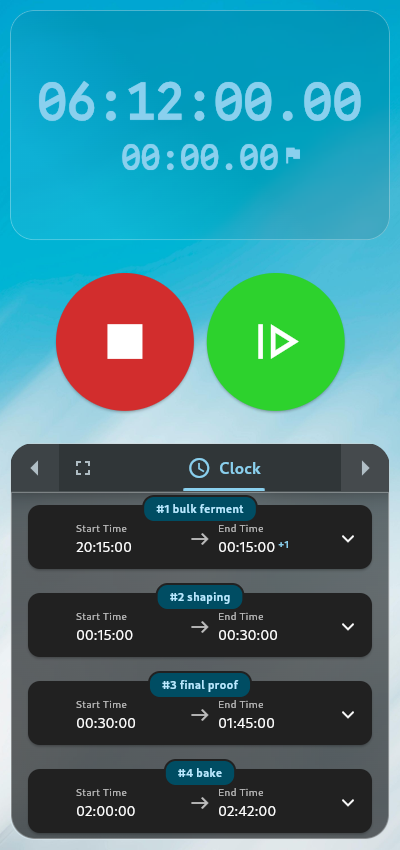
Start the session when you begin, and tap a lap at each stage change; name them afterwards (“bulk ferment”, “shaping”, “final proof”, “bake”) straight from the Laps tab. The laps carry real clock timestamps, and the Clock tab shows each stage as actual times of day — start and end. A stage that crosses midnight gets a day marker rather than appearing to end before it began, so an overnight proof reads as an overnight proof.
Two boundaries worth knowing. Keep Screen On, if you switch it on, holds the screen awake while the stopwatch runs — pause to knead and the screen can sleep, and the session still keeps its time. And if you leave the app: on Android, a small notification ticks each second with the elapsed time while the session runs. On iOS, nothing updates while you are away — but the moment you come back, the time is right, because it was computed from the clock, not from an app that stayed awake. Leave and return; that is the honest shape of it.
Music practice
Thirty minutes of practice is not thirty minutes of practice. It is ten minutes of scales, fifteen on the hard passage, five of noodling — and the passage is the part that needs the number.
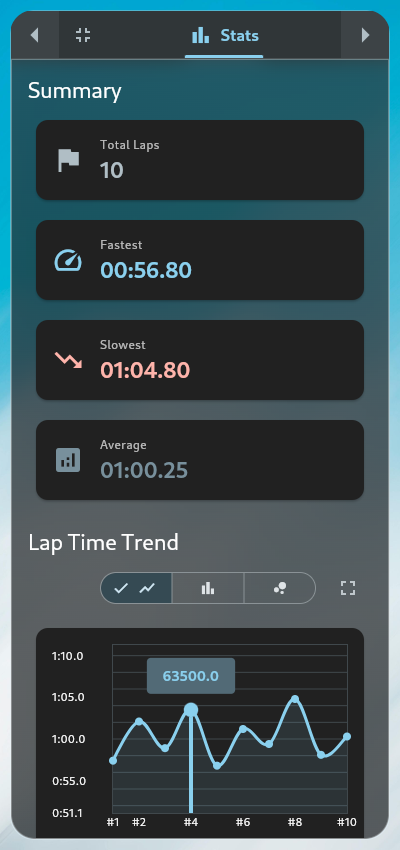
A lap per passage, named after the fact. The Laps tab can display lap times, cumulative split times, or both side by side — the entire laps-versus-splits argument of our first post, reduced to one toggle. And the Stats tab will tell you which passage eats the session: fastest lap, slowest lap, average, and a trend chart once you have at least two laps. (The Stats tab is part of Pro; the Laps tab it builds on is free.)
Workouts
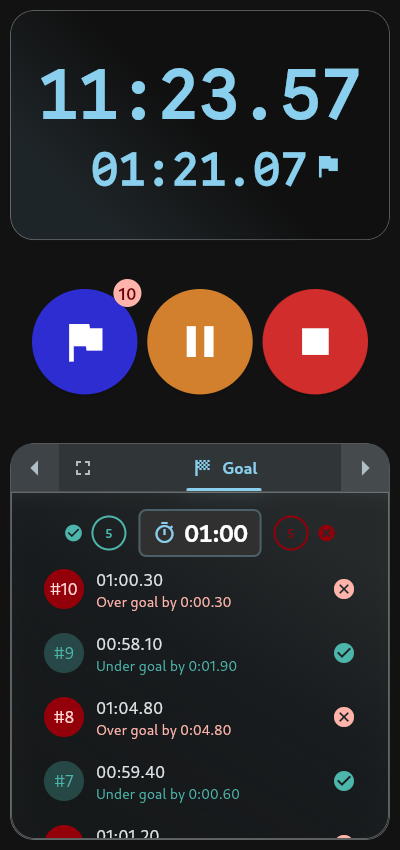
Intervals, sets, repeats — the pattern where a target lives.
Set a target lap time in the Goal tab, and every lap you tap is counted as a hit or a miss against it. The Goal tab is free — it is one of the two tabs that always are. Every control button can give its own sound and haptic pulse, so a lap can be logged from a pocket or an armband without looking, all behind a master switch if you would rather it never buzzed at all.
Pauses are handled the way training actually works: lap durations count only running time, and pause time is tracked separately — per segment in the export. The session with a water break produces “40 minutes running, 3 minutes paused”, not a quiet lie.
Lab and procedure work
The scenario the four-decimal display is for. Set precision to four places and the timer shows ten-thousandths of a second — real digits, from microsecond timing, though what they bound is display resolution, not a laboratory accuracy claim. (What the decimals do and do not mean is its own post.)
Each lap records its own start and end timestamps, not just a duration. The CSV export writes one row per segment — name, number, start, end, duration in hours, minutes and seconds, and pause time per segment — and honours your precision setting. That last clause used to be false: the setting was once a silent no-op for CSV and JSON, and it was fixed. A bug-found-and-fixed story is the only honest way to tell it.
And the lab-notebook property: if one stored record is ever corrupted, the app quarantines that record and logs it, rather than refusing to load the whole history. One bad row does not eat the dataset.
Work sessions
Timeboxing, billable hours, or just “where did the afternoon go”. Start the session, tap a lap when you switch tasks, stop when you pack up.
With Auto-Save on, stopping saves the session immediately — no manual step, nothing to remember. Sessions can be renamed and carry a free-text note; the Timeline tab replays the whole session as it happened: every start, lap, pause and stop, with timestamps, so the shape of the day is on the record and not just the total.
Two boundaries, stated rather than buried. The free tier holds five saved sessions; the sixth save is refused until you clear one or upgrade. And sessions live on your device only — there is no sync and no cloud copy. Deleting the app deletes the sessions. For a work log, that is the sentence you would want to know in advance, so it is here.
What “it keeps running” means
All five scenarios share one worry: what happens when the phone locks, the app backgrounds, the system kills it. The honest answer has layers, and they are worth knowing in order.
Lock the screen or switch apps: the session continues — on Android with the ticking notification, on iOS invisibly, correctly. Harder: the system kills the app outright. Running state is saved every thirty seconds and on every lap, and restored the moment you open the app again — a kill is survivable by design, laps, names and pauses intact. On Android 15, even the foreground service has a system-imposed time limit; the app does not fight it, because it does not need to. Recovery, not immortality, is the design.
That is the whole philosophy of the app in one paragraph. The session is the record; the record survives; and everything the record says — the names, the pauses, the midnight-crossing timestamps, the final stretch from your last lap to the stop — is there because it happened.
When one of the five scenarios above is yours, TiCaNo Stopwatch is built for exactly that shape of day: start it, tap your waypoints, name what they were, and stop. The record describes what actually happened. That is the entire product promise, and the only one we make.
Sources
All app claims in this post were verified against the shipped TiCaNo Stopwatch v1.6.2, the build currently in both app stores — checked by running the build, not by reading marketing copy. Platform-behavior claims (Android’s foreground-service rules, iOS background limits) follow the official platform documentation for each current OS release.